
IDE Ink editor
Creator Studio includes a full-screen Ink editor for writing conversations. It is not VS Code. It is Sexter's own multi-file IDE: save compiles into the game, with autocomplete for tags and externals, find/replace, media insert, and warning underlines.
The Creator Studio page covers Studio tabs (Characters, Modules, Publish, and so on). This page is only the Ink IDE.
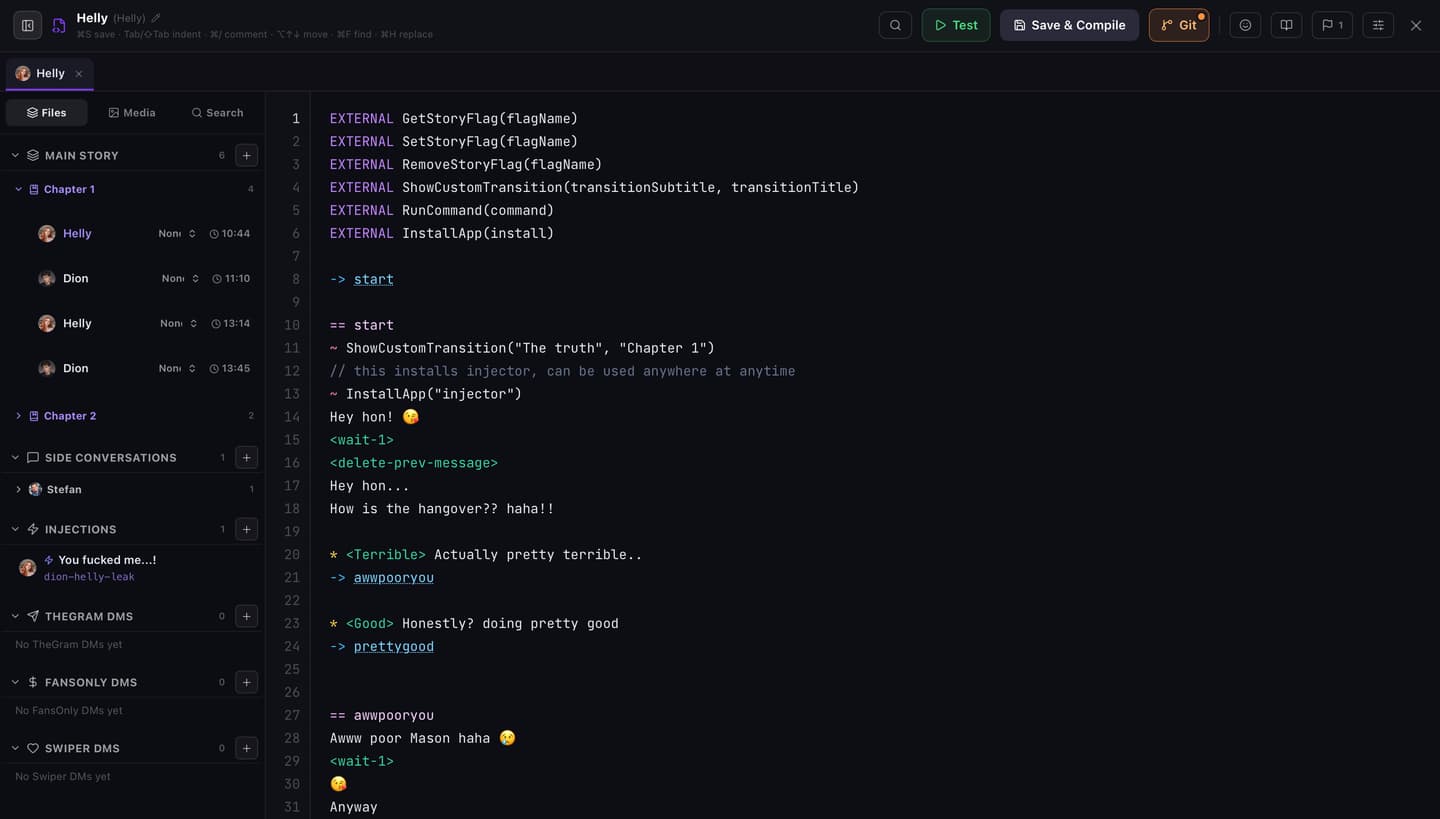
Opening the editor
From Studio → Conversations:
- Open Editor restores the Ink tabs you had open last time for this story (and the tab you were on). If none are remembered, it opens with no file selected so you can pick from the Files list
- Click a conversation, side conversation, injection, or DM row to open that file. Other remembered tabs stay open
- Click a warnings pill to jump to the first problem in that conversation
Inside the IDE, use the left Files list (or open tabs) to move between files. Open tabs are remembered in this browser, per story.
Layout
| Area | Role |
|---|---|
| Left sidebar | Files, Media, or Search. Full height under the toolbar |
| Top toolbar | Save, Test, Git (if linked), reference tools, close |
| Tabs | One tab per open Ink file, above the editor (not across the sidebar). Middle-click a tab to close it. Unsaved tabs can Save & Close |
| Editor | Line numbers, syntax colors, warning squiggles |
| Find bar | In-file find / replace (⌘F / Ctrl+F, ⌘H / Ctrl+H) |
On phones, opening a file hides the sidebar so the editor has room. Use the panel toggle to bring Files back.
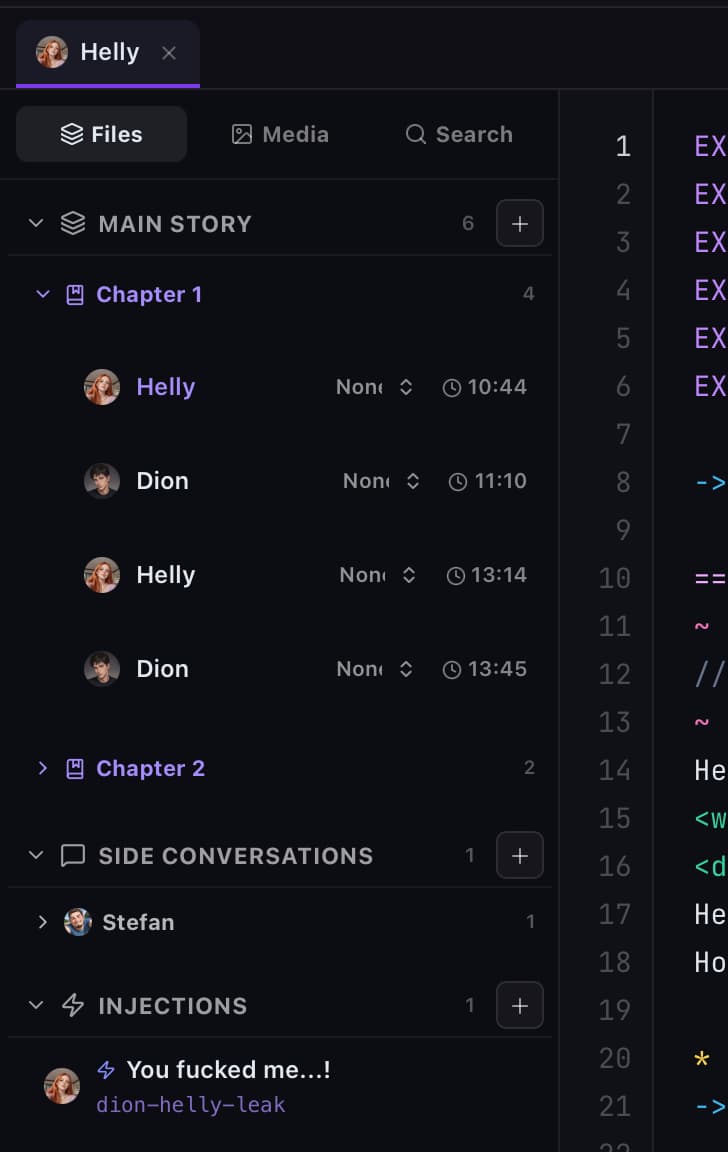
Files
Grouped as:
- Libraries (shared INCLUDE files, not playable chats). See INCLUDE libraries
- Main Story (ordered conversation and chapters; unlock day/time on the chain)
- Side Conversations (by character, drag to reorder)
- Injections
- TheGram DMs, FansOnly DMs, Swiper DMs
Click a row to open it. Drag to reorder the main chain or a character's side conversations. Use + (and insert-between rows) to add conversations.
Right-click a file in the sidebar:
| Item | Action |
|---|---|
| Edit | Conversation settings (character, slug, unlock time, and related fields). Hidden for library files |
| Delete | Remove that conversation / side / injection / DM / library |
Media
Pictures, videos, and SFX from the story library. Search, upload, then insert at the caret as <media-id> (or <injectmic-id> for MIC TAP SFX).
Search
Project-wide search across Ink (needs at least 2 characters). Optional Match case, plus Replace / Replace all across every file in the story. Project replace saves and recompiles after you confirm.
Toolbar
Left to right (labels match the UI):
| Control | What it does |
|---|---|
| Panel toggle | Show or hide the file explorer |
| Title | Conversation name (click to rename when editable) |
| Search icon | Jump to sidebar Search (project find/replace) |
| Test | Play this conversation in the phone UI. If the tab is unsaved, Studio warns first. Test runs the last saved & compiled version. Hidden on library files |
| View only | Badge when you cannot edit. Browse, search, and Test still work |
| Save all | Appears when other tabs are dirty. Saves and compiles every unsaved tab (⌘⇧S) |
| Save & Compile | Saves the active file and compiles it. Shows Compiling… while working |
| Git | Only if the story is linked to GitHub. Pull / push from here |
| Emoji | Toggle the emoji insert strip (see below) |
| Book | Ink syntax cheat sheet (click a row to insert when editable) |
| Flag | Story data: flags and numbers used in the story, with Get/Set insert, jump-to-use, and a Purge unused flags button (deletes dead SetStoryFlag/RemoveStoryFlag lines, see Flags and numbers) |
| Sliders | Editor appearance (theme, font, size, line height, word wrap, suggestions). Stored in your browser |
| X | Close the IDE. If tabs are unsaved, you can Save & Exit, close without saving, or keep editing |
After save you get a short status: Saved & compiled, or Saved with a compile error message (source is kept even if compile fails).

Emoji bar
The emoji strip inserts common faces and gestures into dialogue at the caret. It sits above the editor with the file tabs, and scrolls sideways when the list is wider than the pane.
On desktop (mouse / trackpad) you can customize the strip:
- Click an emoji to insert it at the caret
- Drag and drop to reorder (a purple bar shows the drop gap; neighbors slide out of the way)
- Right-click a slot to replace it with another emoji (paste or type one, then Set)
Your order and replacements are saved on your Sexter account, so the same strip follows you across browsers and devices. On phones, the bar is tap-to-insert only (no drag or replace).
Appearance
Color profile: Vivid, Ocean, Warm, or Mono (no colors). Font: JetBrains Mono, System Mono, or Courier. Font size 12–20px. Line height: Tight, Cozy, Normal, Relaxed. Word wrap and Suggestions are on/off toggles (suggestions on by default).
Right-click in the editor
Context depends on what is under the cursor and whether the file is editable.
| Item | When | Action |
|---|---|---|
| Jump to knot | -> name or <- name under the cursor | Scrolls to that == name in this file |
| Rename knot | Edit mode, == name or -> name / <- name under the cursor | Renames that header and every matching divert in this file (F2 does the same). Dialogue text and comments stay put |
| Add missing SFX / Add missing image | Media tag with a missing-media warning | Upload using that id (does not invent a new id) |
| Preview SFX / Preview player media / Preview gallery save / Preview media | Known media tag | Quick preview |
| Open injection: … | <inject-…> that has a conversation | Opens that Ink tab |
| Preview Injector image | Injection with Found images | Preview |
| Cut / Copy / Paste | Selected text (Paste also works with no selection) | Clipboard, in the custom menu or ⌘X / ⌘C / ⌘V (Ctrl on Windows). Whole-line copy and cut include the trailing newline, so paste does not glue onto the next line |
| Convert script to Ink | Multi-line selection | Turns a plain draft into Ink (NPC lines; mc: lines become player choices/knots) |
| Reindent | Edit mode | Rewrites leading spaces for the selection, or the whole file if nothing is selected. Same as ⇧⌥F / Shift+Alt+F |
| Insert picture / video | Edit mode | Upload, then insert <id> |
| Insert MIC TAP SFX | Edit mode | Upload, then insert <injectmic-id> |
You can also click a -> knot (or <- knot) for Jump to knot (and Rename knot when the file is editable), or ⌘-click (Ctrl-click on Windows) a divert, media tag, inject tag, or flag name to jump or preview immediately. Rename only changes this file. Other conversations that divert here by name are left as they are.
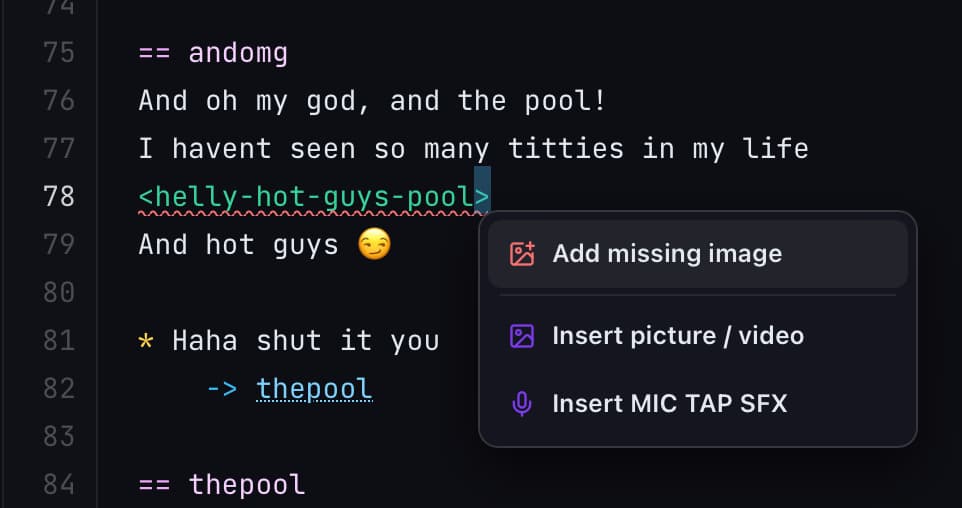
Autocomplete
Suggestions appear while you type. Titles include Story flags, Story numbers, Speakers, Knots, Apps, Characters, Commands, and slug lists for sides / DMs / shares.
Turn them off from Appearance -> Suggestions if the popup gets in the way. Ctrl+Space still opens the list at the caret.
- Tab, Enter, or click to accept
- ↑ / ↓ to move
- Esc to dismiss
- Shift+Enter inserts a newline without accepting (and still auto-indents)
Common triggers: [ in group chats, <side-conv- / <inject- / DM prefixes, -> and ===, InstallApp(", GetStoryFlag(" / SetStoryNumber(", and ~ for commands.
~ opens the command list right away. Typing GetStoryFlag or GetStoryNumber on its own line (or after ~ ) pastes the full check, choices, else arm, and closing }. The caret sits in the quotes so you can pick a flag or number. {Get or - Get on a condition arm also completes those names.
Warnings
Studio scans the whole story for authoring problems. There is no separate "Problems" panel. Warnings show up in three places:
- Conversations list: pills like
1 warningorN warnings. Click to open the IDE at the first hit - Files sidebar: triangle on the row. Hover for the message; click to jump
- Editor: red underlines. Hover for the same message
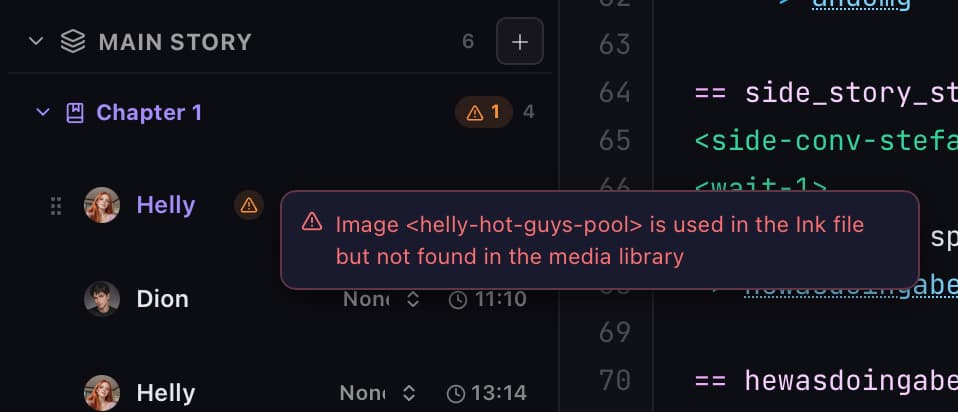
Typical categories:
| Kind | Examples |
|---|---|
| Compile / Ink | inkjs errors after Save & Compile |
| Missing media | Image or <injectmic-…> SFX id not in the library |
| Broken links | Unknown <side-conv-…>, empty <inject-…>, unreachable side |
| Deprecated / Unity leftovers | <side-story-…>, legacy <insta-…>, leftover RunCommand |
| Modules | Tag or InstallApp while the module is off; MIC TAP without InstallApp("mictap") |
| Unknown names | Bad app id, NPC slug, or ~ command |
| Flags | Set never read (GetStoryFlag, name status, route badges, Skipr, cinematics), or Get never set |
| Timing / Skipr | Odd unlock times on the main chain; Skipr points without a day |
Fix warnings before you publish. Many bad tags fail silently at runtime for players. Tag reference: Tags. Externals: External functions.
Indent
Enter keeps the current line's indent and adds one level after a * / + choice, a {, or a - condition: arm. After a lone -> divert it drops back one level so the next * lines up. Knot headers (== name) go back to column 0.
Right-click Reindent (or ⇧⌥F / Shift+Alt+F) rewrites leading spaces only. A selection reindents those lines; a caret reindents the whole file.
== new_phone_1
Great!!

*   Yeah, dropping it in the lake was the final push it needed
    -> new_phone_2
Ink itself ignores indent. This is only so choice blocks are easier to scan.
Shortcuts
The hint under the title matches your OS: ⌘ and ⌥ on Mac, Ctrl and Alt on Windows / Linux.
| Shortcut | Action |
|---|---|
⌘S / Ctrl+S | Save & Compile |
⌘⇧S / Ctrl+Shift+S | Save all dirty tabs |
⌘F / Ctrl+F | Find in this file (or project Search if focus is elsewhere) |
⌘H / Ctrl+H | Replace in this file (or project replace) |
Tab / ⇧Tab | Indent / outdent (Tab also accepts autocomplete) |
Enter | Auto-indent the new line. Accepts autocomplete when the popup is open |
⇧⌥F / Shift+Alt+F | Reindent the selection, or the whole file |
F2 | Rename the knot under the caret, in this file |
Ctrl+Space | Open autocomplete at the caret |
⌘/ / Ctrl+/ | Toggle // comments |
⌥↑ / Alt+↑ · ⌥↓ / Alt+↓ | Move lines |
⇧⌥↑ / Shift+Alt+↑ · ⇧⌥↓ / Shift+Alt+↓ | Duplicate lines |
⌘⇧K / Ctrl+Shift+K | Delete line(s) |
⌘Z / Ctrl+Z | Undo |
⌘⇧Z / Ctrl+Shift+Z (or Ctrl+Y) | Redo |
Click a -> knot | Open Jump to knot (and Rename knot when editable) |
⌘-click / Ctrl-click | Jump / preview divert, media, inject, or flag |
What you can and cannot do
You can
- Edit every story Ink file in one IDE (main chain, sides, injections, module DMs)
- Save and compile into Sexter (source stays even if compile fails)
- Find and replace in one file or across the project
- Insert media and MIC TAP SFX from the sidebar or right-click menu
- Use Sexter-aware autocomplete and the cheat sheet
- Auto-indent on Enter, and Reindent from the right-click menu
- Rename a knot in this file (right-click Rename knot, or
F2) - Test the conversation on the real phone UI
- Rename, reorder the main chain, set unlock day/time
- Sync with GitHub when the story is Git-linked
- Work in View only to browse and Test without saving
You cannot
- Multi-cursor, code folding, or a minimap (this is not VS Code)
- Edit arbitrary folders on disk. Only this story's Ink tree
- Compile without saving
- Set breakpoints or step through Ink like a debugger
- Rely on Test while the tab is dirty without saving first (it uses the last successful save)
External editors (VS Code, Cursor) are optional for drafting. Studio remains the place that compiles, warns, and attaches media for Sexter.
Related
- Creator Studio for tabs outside the IDE
- Getting started for the first-story path
- Tags, External functions, INCLUDE libraries, Timing and pacing
- Side conversations
- Publish and updates