
Creator Studio
Creator Studio is the editor for Sexter stories. Open it from the site when you are logged in as a creator.
Studio chrome (tabs, buttons, module editors, confirms) follows your account language, the same picker as the library and login. Story titles, character names, and Ink you wrote stay as you typed them.
A story opens on the Story tab (main chapters) when you click it from your list. Refresh keeps the tab you were on. Info is still there for title, cover, description, and visibility.
If a published story has a draft, clicking its card in Creator Studio opens whichever you last edited (draft or live). First time, it opens the draft. Switch with Edit live version or Continue draft in the banner.
Rough map of the tabs
Names can shift a bit as the UI evolves, but the jobs stay the same.
| Area | Job |
|---|---|
| Info | Title, cover, description, visibility |
| Characters | NPCs, avatars, bios, name-status emojis tied to flags |
| Story | Main chapters, side conversations, injections, app DMs |
| Media | Images, video, SFX (including MIC TAP clips) |
| Modules | TheGram, FansOnly, Swiper, Injector, Contacts, Side Door, Skipr, Idle Hustler |
| Design / Phone | Per-story icons, labels, bubble color, wallpapers, route badge emojis |
| Cinematics | Fullscreen slideshows |
| Languages | Add a language, download a spreadsheet of every line, upload the translation |
| Publish | Go live, playtest links, version bump, "what's new" notes |
Notes tab
The Notes tab sits on the right edge of the screen in every part of Studio, including the full-screen Ink editor. Click it to open a small notepad: free text, or checklist items you can check off. It autosaves as you type, up to 2000 characters.
Notes are private to you and scoped to the project you're in, switching stories switches the note. Co-authors each keep their own notes; nothing here is shared with them.
Warnings are your friend
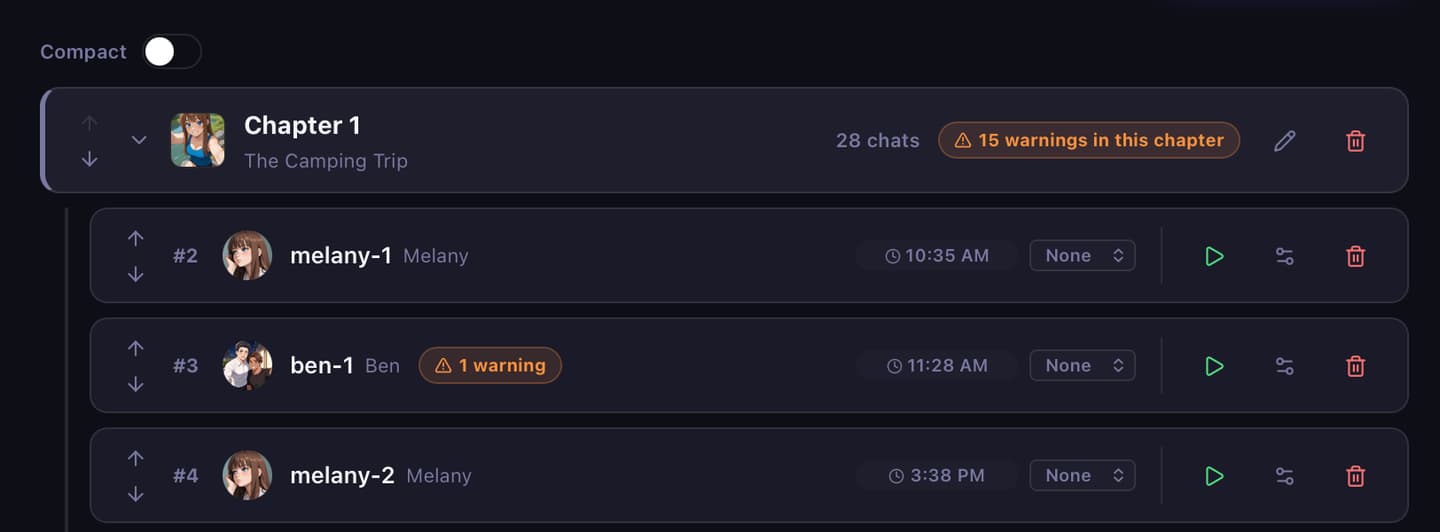
Studio scans Ink for unknown tags, missing media ids, deprecated Unity syntax, and RunCommand leftovers. Fix those before you publish. Silent no-ops at runtime are the worst kind of bug.
Validate
On the Story group chrome, open Validate for a full project scan: stats, game-breaking errors, soft warnings, and readiness suggestions.
When image ids in Ink are not in the Media library, Missing pictures is a plain list you can copy into a todo. One line per id, with the .ink file that uses it. The list is in story order: first conversation at the top, latest at the bottom.
ben-on-jetski (ben6-6.ink)
melany-bar (melany3-1.ink, melany3-2.ink)
Copy list copies that text. Copy IDs copies ids only, one per line. The same missing ids still appear under Errors with the full message. Click an error row to open that line in the editor.
Unused media lists images and videos in your Media library that nothing assigns: any conversation Ink (main, sides, groups, TheGram / FansOnly / Swiper DMs, including <pic> # wait:2 and tags on a choice line), injects, ChangeProfilePic, TheGram, FansOnly, Swiper, cover/banner, phone wallpaper and app icons, chapter thumbs, character avatars, or cinematics. Use it to prune uploads when you are near the storage cap. Delete from the Media tab; Validate only reports.
Uploading a file that is byte-for-byte identical to one already in the story's library shows a heads-up with the existing picture's ID and filename, but still uploads it as a new file (it never blocks or merges automatically). If you meant to update an existing picture instead, open it and use Replace file (or Edit tools → Save) so the ID stays the same and every Ink tag pointing at it keeps working, rather than uploading a second copy under a new ID.
Chapters vs side conversations
- Main chapters are the spine. Finish one Ink file, Sexter can advance to chapter
order + 1. - Mark a chapter Being written to list it as not ready yet. Players who finish the previous chapter see that end screen and leave Continue (caught up). Clear the flag when the chapter is playable. Bump version if you want the Update badge. Details: Publish and updates.
- Side conversations pause the current Whapp thread, open another chat, then pop back. Trigger them with
<side-conv-your-slug>. Details: Side conversations.
Modules and InstallApp
On the Modules tab, Add module (top right) opens the list of apps you can install. Turning a module on is not always enough. If Show from start is off, the player only sees the app after:
~ InstallApp("thegram")
Full list and gotchas: InstallApp and modules.
Idle Hustler is simpler: it's the account-wide idle game, tied to the player, not this story's content. The Modules toggle is just on/off, no Show from start and no InstallApp id. Sliding it off hides the app on this story right away, including the live version. You do not need to publish a draft for the hide to apply.
Cover art
The Info tab has an Edit Cover Art button. It opens a dedicated editor: your layers on the left, a live tilting preview on the right.
Cover art is up to three stacked layers:
- Bottom is always your story's cover image. It's the only layer required.
- Mid is the main optional cutout (transparent PNG) that floats above the cover. Start here for the 3D hover look.
- Top is a second optional cutout, closest to the cursor.
Export every layer, including the Mid/Top transparent PNGs, at the same 800×1200px (2:3) canvas as your cover. All three layers are cover-fit onto the same frame, so a Mid/Top cutout at a different aspect ratio gets cropped differently than the cover, and the Offset/Scale sliders won't line up the way you'd expect.
Each layer has its own sliders:
- Offset X / Offset Y nudge the layer's position
- Scale resizes the layer
- Depth controls how far the layer floats toward the cursor on hover, 0 is static, 100 floats the most
Turn on 3D Effect to make Mid/Top parallax when a player hovers over the card in the library. Bottom then drifts the other way so the cutouts read as layered. With only a cover image (no Mid/Top), or with 3D Effect off, hover is a regular cover zoom, no tilt or slide. This shows the same way on your Studio overview card and on the library/player-facing card. Mobile and other non-hover devices just get a flat card, no perf cost.
Intensity scales the whole-card 3D effect: tilt, parallax travel, and layer float together. 0 is a flat card, 1 is full strength. New covers default to 0.5.
Hide title/author text on cards removes the bottom title/"by author" overlay, useful if your cover art already has the title baked in.
Design tab
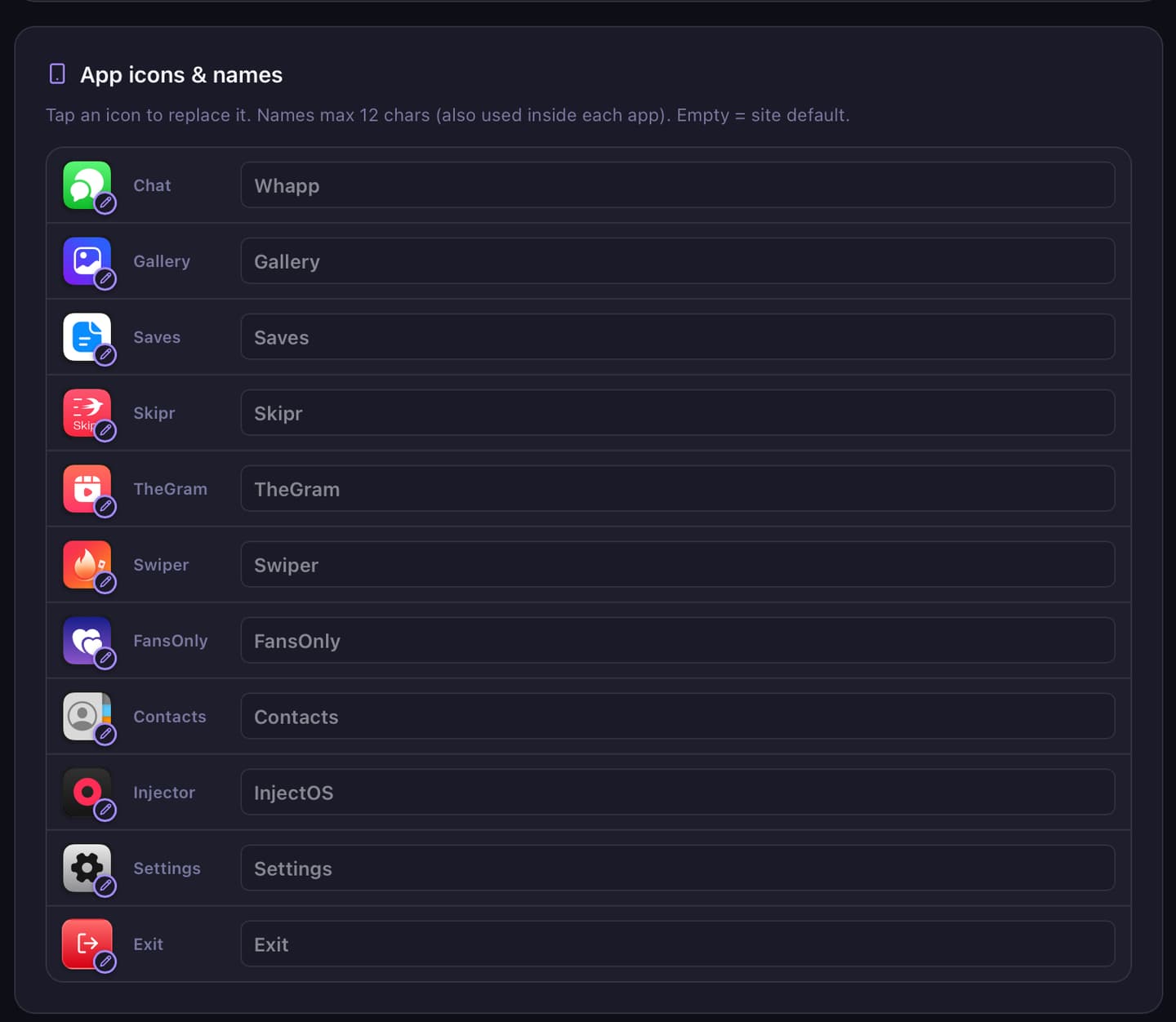
Per-story phone look. Custom app icons, short home-screen names, incoming bubble color, wallpapers, and route badge emojis for Save Files and choices like * (ntr_route)…. Those route badges do not appear on contact names. For a name emoji, use Characters → Status. Empty fields fall back to site defaults.
Playtest Creator Tools
In Studio playtest (wide enough layout), the Creator Tools side panel can jump the main chain, edit flags/numbers, and force unlocks without writing the Ink beat yet.
Under Unlocks, click a TheGram post, FansOnly creator/post, or Swiper profile row. That unlocks in-game (no page reload), refreshes the open app if you are already inside it, and installs the phone app if it was missing. Optional Phone apps only checkboxes put an icon on the home screen without unlocking any content. Jumping the main chain, forcing a side conversation, or unlocking an Injection still reloads playtest, those change the active chat.
Also covers injections and force side conversations. Story Ink still owns what players get in a published playthrough.
Publish
Drafts are for you. Share them with testers from Publish -> Playtest links. Published stories show in the library. The base story must be written in English or it will not appear there. Other languages are translations you add on the Languages tab. That tab shows a yellow warning when a language drops below 100% or is not published. From a version draft you can publish only some of the changes and leave the rest in the draft. You can post short update notes and optionally bump the version so players see an Update badge. See Publish and updates.
Content rules
There is a Guidelines gate the first time you use Studio. Read it. Adult content is expected here; illegal / non-consensual real-people stuff is not. When in doubt, check /guidelines on the main site.